
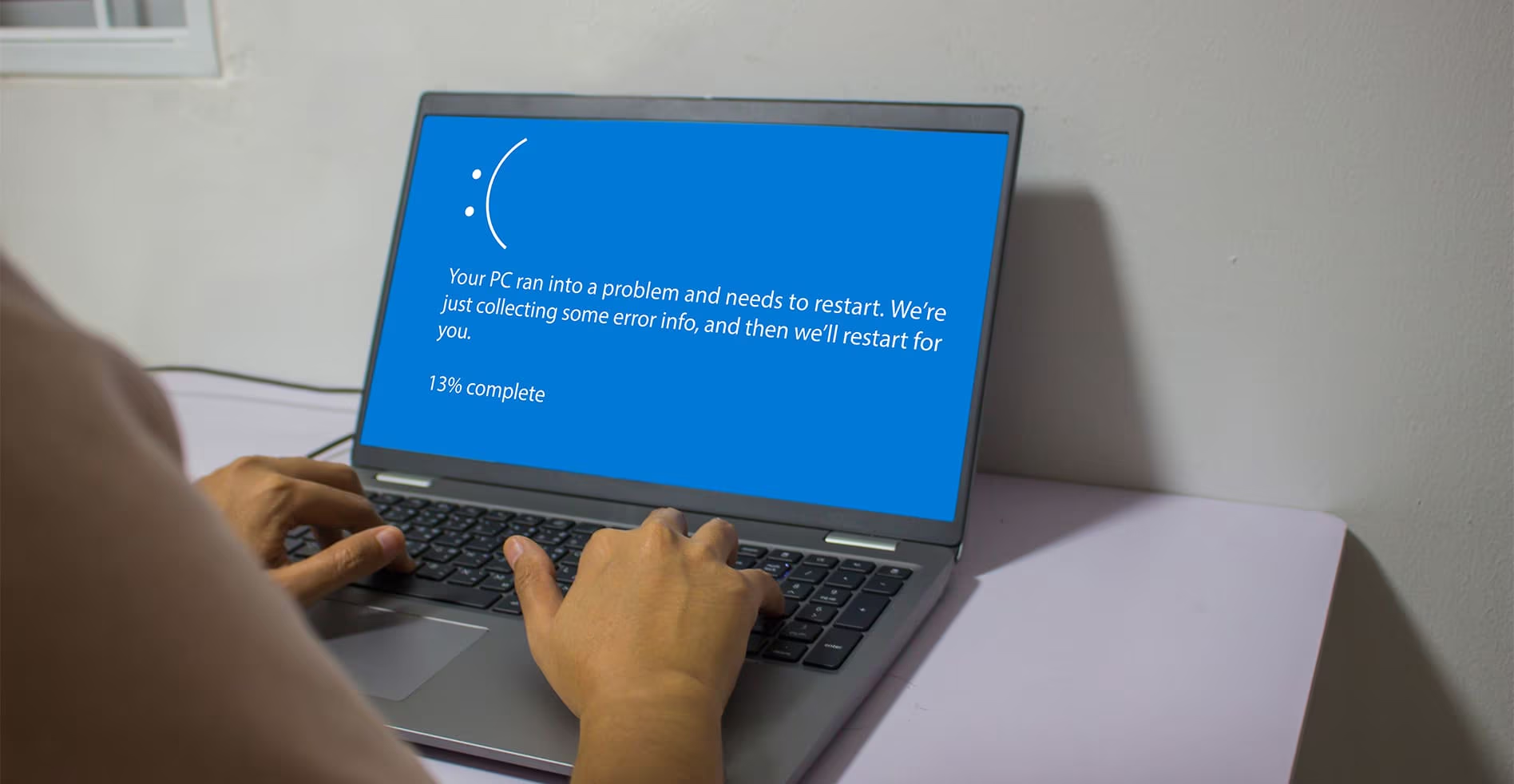
Seeing a blue screen on your computer can be scary. But don’t panic. This error is often fixable. The blue screen also known as the Blue Screen of Death or BSOD shows up when Windows faces a critical problem. Your PC then restarts to protect itself. Learning how to fix blue screen error is a useful skill. You can save time and money by solving it yourself. In this guide I will show you simple steps to get your computer working again.
What Is a Blue Screen Error?
A blue screen error happens when Windows crashes. The screen turns blue with white text. This text includes an error code. That code tells you what went wrong. Common error codes are CRITICAL_PROCESS_DIED or IRQL_NOT_LESS_OR_EQUAL. When this happens your computer stops all tasks. It collects some error info then restarts. Sometimes the restart loop continues. That is frustrating. But most blue screen errors are not hardware failures. They come from software conflicts or driver problems. Understanding this helps you fix the issue without replacing parts. So take a deep breath. You can solve this.
Quick Fixes for a Blue Screen Error
Let us start with the easiest steps. These quick fixes work for many blue screen errors. Try them one by one.
First restart your computer. A simple restart clears temporary glitches. If your PC is stuck on the blue screen hold the power button for 10 seconds. Then turn it on again. Windows will try to start normally.
Second disconnect external devices. Remove USB drives printers webcams and other peripherals. A bad external device can trigger a blue screen. After disconnecting restart your PC. If the error goes away then one of those devices is the culprit. Reconnect them one at a time to find the problem.
Third run a system file check. Windows has a tool that scans for corrupted files. To use it open Command Prompt as an administrator. Type the command “sfc /scannow” then press Enter. Wait for the scan to finish. This tool will repair many system file issues. It can fix blue screen errors caused by damaged Windows files.
Fourth check for Windows updates. An outdated system can cause blue screens. Go to Settings then Update & Security then Windows Update. Click Check for updates. Install any pending updates then restart your PC. Microsoft regularly releases patches for known issues. Keeping your system updated prevents many errors.
Fifth use System Restore. If you recently installed something Windows might have created a restore point. You can roll back to a time when your PC worked fine. To access System Restore type “recovery” in the Windows search bar. Select Recovery then Open System Restore. Follow the wizard to choose a restore point. This does not affect your personal files. It only removes apps and drivers installed after that date.
These quick fixes solve many blue screen problems. But if they do not work move to the advanced solutions.
Advanced Solutions to Fix Blue Screen Error
When quick fixes fail you need deeper troubleshooting. These advanced methods require more care but they are still doable for most users.
First check your memory. Bad RAM sticks often cause blue screens. Windows has a built-in memory diagnostic tool. Type “Windows Memory Diagnostic” in the search bar and open it. Choose “Restart now and check for problems”. Your PC will restart and test your RAM. The test takes several minutes. After the test Windows will show results. If errors appear you need to replace your memory modules.
Second update your drivers. Old or corrupt drivers are a top cause of blue screen errors. Focus on graphics drivers chipset drivers and storage drivers. Go to your computer manufacturer’s website. Download the latest drivers for your model. Alternatively use Device Manager. Right click the Start button then select Device Manager. Look for devices with a yellow exclamation mark. Right click each one and select Update driver. For graphics cards I recommend using the official tool from NVIDIA AMD or Intel.
Third check your hard drive. A failing hard drive can trigger blue screens. Use the CHKDSK tool. Open Command Prompt as administrator. Type “chkdsk /f /r” then press Enter. You will be asked to schedule a scan on next restart. Type Y then restart your PC. This tool checks for bad sectors and fixes file system errors. It can take a long time on large drives. But it is worth the wait.
Fourth scan for malware. Some viruses cause system instability and blue screens. Use Windows Security or a trusted antivirus tool. Run a full system scan. Remove any threats found. Malware can damage system files or overload your hardware. A clean system is a stable system.
Fifth check your BIOS or UEFI settings. Incorrect BIOS settings can cause hardware conflicts. Reset your BIOS to default settings. To do this restart your PC and press the key for BIOS setup. Common keys are F2 F10 or Delete. Once inside look for an option like “Load Optimized Defaults” or “Reset to Default”. Save changes and exit. Be careful not to change other settings if you are unsure.
Sixth perform a clean boot. A clean boot starts Windows with minimal drivers and startup programs. This helps you find if a third-party app is causing the blue screen. To do this type “msconfig” in the search bar. Open System Configuration. Go to the Services tab. Check “Hide all Microsoft services” then click Disable all. Then go to the Startup tab and click “Open Task Manager”. Disable all startup items. Restart your PC. If the blue screen stops you can enable services one by one to find the culprit.
Seventh use Windows Recovery Environment. If your PC cannot start normally you can access advanced recovery options. Turn on your PC and when Windows tries to load force a shutdown by holding the power button. Do this three times. On the fourth start Windows will enter recovery mode. From there you can choose Troubleshoot then Advanced Options. You will see tools like Startup Repair System Restore Command Prompt and Uninstall Updates. Try Startup Repair first. It can fix many boot-related blue screen errors.
Eighth reinstall Windows. This is a last resort. A fresh Windows install removes all settings apps and sometimes personal files. So back up your data first. You can reinstall Windows using a USB drive or the Reset this PC feature. Go to Settings then Update & Security then Recovery. Click “Reset this PC” and choose “Keep my files” or “Remove everything”. A clean Windows install fixes almost all software-related blue screen errors. But it takes time and you must reinstall your programs.
How to Prevent Future Blue Screen Errors
You fixed your blue screen error. Now you want to avoid seeing it again. Prevention is easier than cure. Follow these habits to keep your PC stable.
Keep your Windows updated. Enable automatic updates. Microsoft releases security patches and stability fixes regularly. Do not postpone updates for weeks.
Update your drivers often. Use manufacturer tools or check manually once a month. Outdated drivers are a silent cause of many crashes.
Monitor your computer temperature. Overheating can cause blue screens. Use free software like HWMonitor to check your CPU and GPU temperatures. Clean your PC fans and vents every few months. If your PC runs hot consider better cooling.
Avoid overclocking unless you know what you are doing. Overclocking pushes your hardware beyond its limits. This can create instability and blue screens. If you overclock dial back to standard speeds.
Run disk cleanup and defragmentation for hard drives. For SSDs only run the optimize tool. Windows has a built-in Defragment and Optimize Drives tool. Keeping your storage healthy prevents errors.
Uninstall programs you do not use. Bloatware and old software can conflict with your system. Use the Settings app to remove unwanted apps.
Be careful with new hardware. When adding RAM or a new graphics card make sure it is compatible with your system. Use reliable brands. Install components carefully to avoid static damage.
Back up your data regularly. Even without blue screens a backup saves you from data loss. Use an external drive or cloud storage. Windows has a File History feature for automatic backups.
Frequently Asked Questions
Here are answers to common questions about how to fix blue screen error.
Why do I keep getting blue screen errors?
Repeated blue screens often point to a deeper problem. Common causes are bad RAM a failing hard drive or corrupt drivers. Use the methods above like memory test and hard drive check to find the root cause.
Can a blue screen error damage my computer?
No a blue screen error itself does not damage hardware. It is a protection mechanism. Windows shuts down to prevent harm. But the underlying issue like overheating or a failing drive can damage parts. So fix the cause quickly.
How do I read the blue screen error code?
The blue screen shows a stop code near the bottom. It looks like “SYSTEM_SERVICE_EXCEPTION”. Write that code down. You can search it online for specific solutions. Sometimes there is a QR code. Scan it with your phone for more info.
Should I reinstall Windows after blue screen?
Only if other fixes fail. Reinstalling Windows is effective but time consuming. Try updating drivers and running system scans first. Use reinstall as a last resort.
My PC restarts too fast. How can I see the blue screen error?
Windows might restart automatically after a blue screen. To stop this go to Settings then System then About. Click Advanced system settings. Under Startup and Recovery click Settings. Uncheck “Automatically restart”. Next time you see a blue screen the error will stay on screen until you turn off your PC.
Can overheating cause blue screen errors?
Yes overheating is a common cause. When your CPU or GPU gets too hot Windows crashes to prevent damage. Monitor your temperatures. Clean your PC fans. Make sure your computer has good airflow.
How do I fix a blue screen error without logging into Windows?
You can access the Windows Recovery Environment. Force shutdown your PC three times during startup. Then choose Troubleshoot then Advanced Options. From there you can run Startup Repair System Restore or Command Prompt. These tools work without a full login.
Question 8: Is it safe to use third-party tools for fixing blue screen errors?
Be careful. Some third-party tools are scams or malware. Stick to built-in Windows tools or trusted software from known companies. When in doubt ask a professional.
Final Thought
Learning how to fix blue screen error is empowering. You do not need to rush to a repair shop every time your PC crashes. Most blue screen problems have simple solutions. Start with a restart and then check for updates. Move to advanced tools if needed. Remember to stay calm. Write down error codes. Follow steps one at a time. Your computer is a complex machine but it gives you clues when something goes wrong. With patience and this guide you can solve most blue screen errors on your own. Keep your system updated. Clean your hardware. Back up your data. These habits will save you from future headaches. Now go forth and fix that blue screen.
